 Статьи
 Классы
 Предметы
 Квесты
 Интерактивная карта
 Lu4 Planner
 Калькулятор Крафта
 Техническая БД
Базовая информация
Макросы — одна из наиболее востребованных вспомогательных механик игры. Они делают игровой процесс комфортней и позволяют автоматизировать множество действий: использование умений и действий, быстрая смена экипировки, создание простых предметов, взаимодействие с группой, объявления в чате. Можно подумать множество способов для применения макросов, все зависит от ваших потребностей и фантазии.
Команда MasterWork пошла дальше — на наших серверах вы можете зациклить макрос для автоматического использования. Теперь вы можете ненадолго оставить персонажа, если нужно срочно отойти от компьютера, барды и баферы могут избавиться от рутины, а управлять несколькими окнами становится гораздо проще.
- Всего можно создать 100 макросов
- Отменить выполнение макроса можно нажатием кнопки Esc
- В макрос нельзя добавить другой макрос
Создание макроса
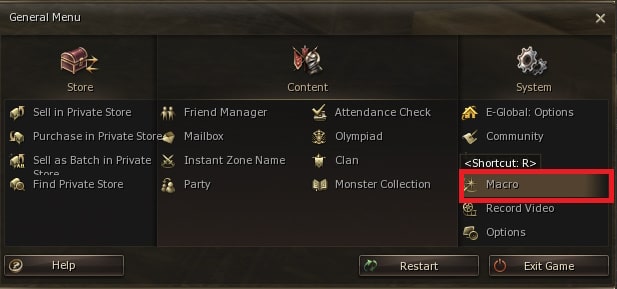
Чтобы открыть окно макросов, нажмите Alt+R или выберите соответствующий пункт в игровом меню:
Перед вами появится окошко для взаимодействий с макросами:
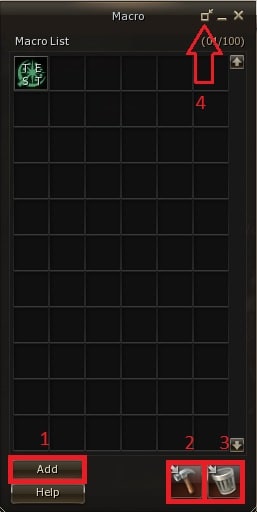
- Создание нового макроса
- Редактирование существующего макроса. Необходимо перетянуть готовый макрос на значок инструмента
- Удаление макроса. Необходимо перетянуть готовый макрос на значок урны
- Уменьшить размер окна. Для удобства быстрого использования макросов без перетягивания на панель
Жмем Add (создать), перед вами появится поле пустого макроса, которое необходимо заполнить:
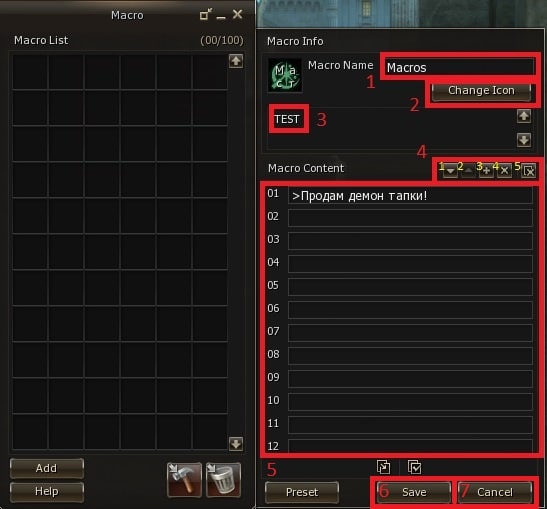
- Название макроса, может содержать до 12 символов
- Выбор уникальной иконки макроса. Для выбора доступны иконки изученных умений, действий и некоторых предметов из инвентаря
- Описание макроса. Необязательно для заполнения
-
Кнопки для работы со строками макроса
- Опустить содержимое строки на 1 уровень ниже
- Поднять содержимое строки на 1 уровень выше
- Добавить выше пустую строку. Всего доступно 12 строк. При смещении вниз последней строки, она будет удалена
- Удалить строку перед содержимым, включая заполненную
- Очистить все строки макроса
- Строки макроса, куда вводятся сообщения или команды в текстовом виде. Одна строка может содержать до 80 символов, включая команду
- Сохранить макрос
- Отменить создание макроса. Все заполненные поля будут очищены
Примеры использования
Использование умений и действий
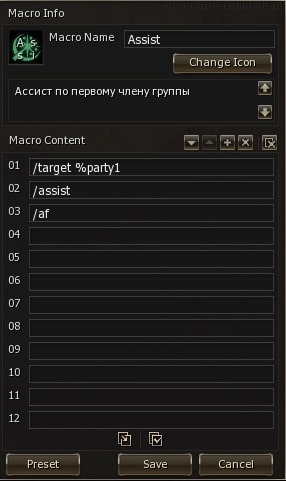
Строка 01 — выделяет в таргет первого члена группы
Cтрока 02 — берет ассист
Cтрока 03 — принудительная (force) атака, имитирует зажатую клавишу Ctrl
Команды можно вводить вручную или использовать автозаполнение при перетягивании действий и умений из соответствующего окна или с панели быстрого доступа. Откат умений внутри макроса будет отображаться на иконке макроса по самому большому таймеру.
Команда "/target" недоступна для использования в цикличном макросе.
Торговые объявления
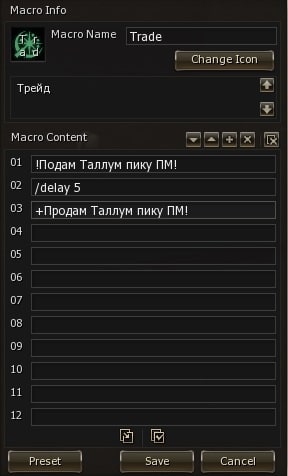
Cтрока 01 — сообщение в чат (!)Крик
Cтрока 02 — задержка в 5 секунд между действиями
Cтрока 03 — сообщение в чат (+)Торговля
Быстрая экипировка
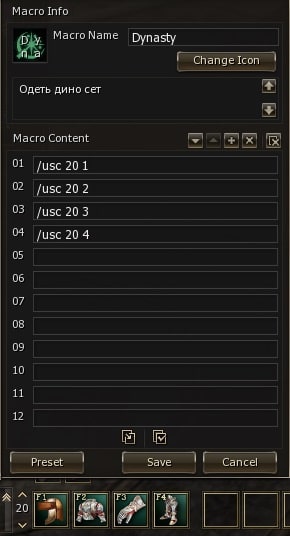
Разберем пример строки 01
/usc — сокращенная команда от /useshortcut (использовать ячейку)
20 — номер строки, 1 — номер ячейки
Для создания такого макроса перетащите нужные предметы экипировки на неиспользуемую строку панель быстрого доступа, а затем перетащите нужные ячейки панели в строки макроса. Для использования макроса не требуется, чтобы строка была видна.
Выбор цели
Добавление в строку макроса специальных команд упростит взаимодействие с целями:
- %self — Взаимодействие со своим персонажем. Например: %self Battle Heal — использовать умение Battle Heal на себя
- %target — Взаимодействие с выбранной целью. Например: /invite %target — пригласить выбранного персонажа в группу
- %pet — Взаимодействие со своим питомцем/саммоном. Например: /target %pet — выбрать своего питомца в цель
- %party1 ~ %party8 — Взаимодействие с членом группы. Например: /target %party1 — выбрать первого члена группы в цель
Полезные команды
В макросе можно использовать любые игровые команды. На серверах MasterWork реализованы сокращенные варианты длинных команд, для экономии места в строке макроса.
trade — /trade /tr
olympiadstat — /olympiadstat /o
target — /target /t
targetnext — /targetnext /tn
assist — /assist /ass
attackforce — /attackforce /af
attackstand — /attackstand /as
useskill — /useskill /us
useskillforce — /useskillforce /usf
useskillstand — /useskillstand /uss
useshortcut — /useshortcut /usc
useshortcutforce — /useshortcutforce /uscf
useshortcutstand — /useshortcutstand /uscs
channelinvite — /channelinvite /cc
friendinvite — /addfriend /fi
partyinvite — /invite /in
leaderchange — /changepartyleader /cpl
partydismiss — /dismiss /d
petattack — /petattack /pa
usepetskill — /usepetskills /upts
petrevert — /petrevert /ptr
summonattack — /summonattack /sa
usesummonskill — /useservitorskills /uservs
Цикличный макрос
Все виды макросов можно зациклить для использования. Для этого перетащите макрос на панель быстрого доступа и кликните по нему правой кнопкой мыши для включения. Выключается макрос так же правым кликом мыши.
Ограничения при включении зацикленного макроса:
- Запрещена отправка сообщений в любой чат с помощью макроса
- Запрещено использование команды /target
- Запрещено использование команды /targetnext с настройкой "Только Монстры"
- Макрос отключится, если персонаж получит состояние PvP/PK
- Невозможно зациклить, если персонаж в состоянии PvP/PK
Пример простого зацикленного макроса для сорка
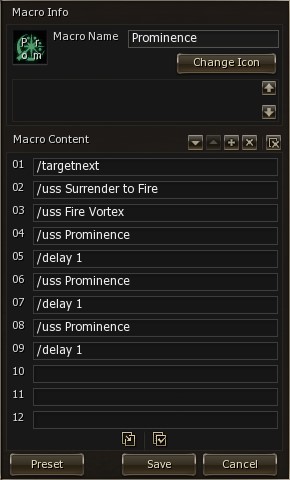
- Выделяем следующую цель
- Cтоя на месте используем скилл Surender to Fire. Если цель находится за действием радиуса скилла, то персонаж останется на месте. Это довольно важный момент, можно подобрать максимально подходящую точку по количеству мобов
- Стоя на месте используем скилл Fire Vortex
- Стоя на месте используем скилл Prominence
- Задержка в 1 секунду перед выполнением следующего действия. Важно устанавливать на персонажах с низкими характеристиками скорости атаки/магии или при использовании скиллов с долгим временем применения, чтобы не было пропусков действий
- Стоя на месте используем скилл Prominence
- Задержка в 1 секунду перед выполнением следующего действия. Важно устанавливать на персонажах с низкими характеристиками скорости атаки/магии или при использовании скиллов с долгим временем применения, чтобы не было пропусков действий
- Стоя на месте используем скилл Prominence
- Задержка в 1 секунду перед повторным использованием макроса
Макрос для атаки по ассисту
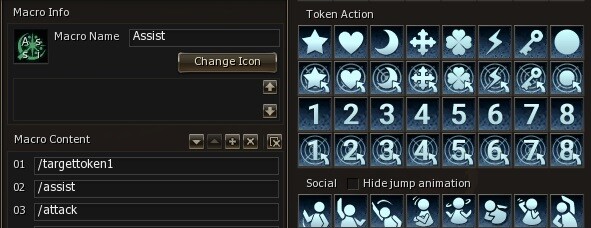
В цикличных макросах можно использовать токены для атаки по ассисту. Поставьте токен /usetoken1 на главного ассистера в группе, затем напишите макрос:
- /targettoken1
- /assist
- /attack
Ассист Менеджер
Зацикленные макросы не позволяют некоторым классам играть достаточно эффективно. Как альтернативное решение был создан Ассист Менеджер.
В боковом меню появилась новая
 кнопка, которая открывает окно Ассист Менеджера.
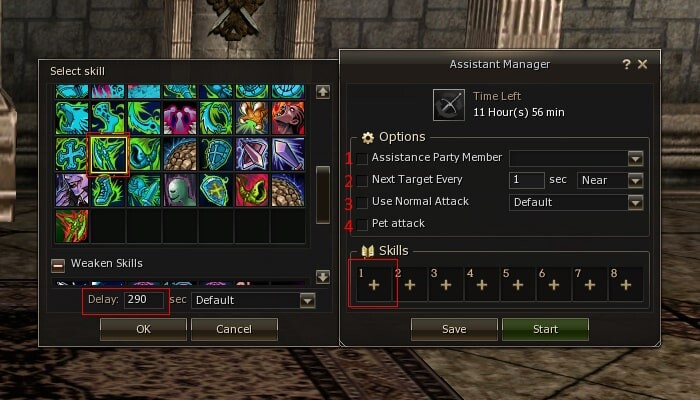
Для использования Ассист Менеджера выберите необходимые настройки и добавьте умения для автоматического использования:
- Для асиста по члену группы поставьте галочку и выберите персонажа в выпадающем списке
- Для самостоятельного выбора цели поставьте галочку, укажите через сколько секунд менять таргет и укажите тип таргета в выпадающем меню — ближний или дальний
- Для использования основной атаки поставьте галочку и выберите тип атаки в выпадающем меню — обычная или с места
- Поставьте галочку, чтобы ваш питомец/сумон участвовал в бою вместе с вами
Чтобы добавить умение для автоматического использования, выполните несколько действий:
- Нажмите плюс в одном из слотов умений
- Выберите необходимое умение из списка
- Укажите в секундах как часто использовать умение
- Выберите способ использования умения — обычный или с места
- Нажмите ОК, чтобы сохранить настройки использования умения
Всего доступно 8 слотов для умений. Изменить настройки каждого умения можно в любой момент. Для этого кликните на необходимое умение. Чтобы удалить умение, нажмите крестик в правом верхнем углу слота.
После настройки всех параметров нажмите кнопку "Старт" для запуска.
Чтобы изменить настройки Ассист Менеджера, необходимо отключить автоматическое использование умений и атаки.
Ограничение времени
На MasterWork существует ограничение по времени на использование зацикленных макросов и Ассист Менеджера.
Обрати внимание!
Обновление таймера для зацикленных макросов происходит в 06:30 по времени сервера.
| Условия | Бонус | Итоговое Время |
|---|---|---|
| Без Бонусов | 0 | 720 мин. (12 часов) |
| Премиум Аккаунт | 360 мин. | 1080 мин. (18 часов) |
| VIP 1 | 120 мин. | 1200 мин. (20 часов) |
| VIP 2 | 240 мин. | 1320 мин. (22 часа) |
| VIP 3 | 360 мин. | 1440 мин. (24 часа) |
| VIP 4 | 480 мин. | 1560 мин. (26 часов) |


 Обновленные бонусы комплектов ранга S
 Бонусы редкой экипировки
 Игровой календарь
 Достижения
 Академия Клана
 Пассивные умения отрядов
 Активные умения клана
 Автолут агатионы MasterWork
 Синтез поясов
 Олимпиада MasterWork
  Библиотека: Книги Опыта
 Арбитр - основной класс. Квест Семена Хаоса 76+
 Тренировочная олимпиада
 Остров Ада: Эпидос
 Инстанс-босс Ядро 78+
 Инстанс-босс Орфен 78+
 Питомцы: новый внешний вид
 Инстанс-босс Королева Муравьев 80+
 Камни Жизни (LS) на Masterwork
 Цикличные макросы и Ассист Менеджер
 Инстанс-босс Траскен 83+
 Миссии
 Стартовый квест Eternal
 Изменение стоимости крафта (сезон 2024)
 Mid Company на Masterwork
 Трансформации Призывателей
 Крепости на Masterwork
 Игровое событие: Хот спот
 Система Усталости (Fatigue)
 Бонусы редкого оружия
 Клуб MasterWork
 Премиум Аккаунт и VIP
 Система Энергии (Vitality)
 Расширение слотов и лимит веса
 Питомцы: Волк и Фенрир
 Квесты на 1, 2 и 3 профессии
 Путь новичка 1-40 уровень
 Питомцы: Кукабарра, Кугуар, Буйвол
 Прокачка Кристалла Души (SA)
 Команда .lock — защита вашего персонажа
 PvP вставка
 Система Атрибута
 Квесты на экипировку
 Все Вкусное - Мое
 Гайд по тату
 Максимум EXP: секреты быстрой прокачки
 Улучшение Ng/D Экипировки
 Квесты в Стартовых Локациях (1-19)
 Квесты 20-39
 Квесты 40-75
 Правила E-Global
 Умения классов поддержки
 Помощь Флорану
 Все виды оружия
 Все виды бижутерии
 Все доспехи и комплекты